Showing posts with label Operating Systems. Show all posts

Thursday, 16 October 2014

How To Install And Activate Windows 10 Technical Preview

Standard

How To Install And Activate Windows 10 Technical Preview :

Hi..Microsoft's Crazy and Brand New Operating System Windows 10 Technical Preview , If you want to try this OS on your PC follow my instructions :

Step 1 : Download Any one of the ISO file of the windows 10 Operating System  


Step 2 : How to install Windows 10 Technical Preview 


Step 3 : How to Activate Windows 10 Technical Preview

Activate Windows 10 Technical Preview

Standard


Activate Windows 10 Technical Preview :

Yes, You heard right! now You Can Activate the Technical Preview of Windows 10 Operating System and After following my Activation Windows 10 Steps you are going to enjoy the full features of windows 10 on your PC.

Follow my instructions to activate windows 10 Technical preview :

First Download the ISO file of Windows 10 Operating System from the given below link :


Then install the Windows 10 on your PC . If you don't know how to install windows Operating System on your PC, Learn installation methods from blew link


Then Download the Activation file from Below link :


After successful installation completion of fresh copy of windows 10 on your PC , Right click on This PC and Go through properties, you’ll get noticed that your Windows is not activated.

OK, Now follow these instructions to Activate : 

Download the Above files and extract them into a safe folder . 

open the KMSpico 10 beta  folder .before you use kmspico Read the txt. file first, then double click on KMSpico_setup application, it’ll ask you to install it .

·         Disable any virus guards/Firewalls/Windows Smart Screen first
·         Download and install Activator
·         Now open ‘KMSELDI.exe’ from  ‘C:\Program Files\KMSpico\’ folder
·         Click tokens backup button which is with an arrow facing down icon (click yes in next message box)
·         After that click Red button
·         Wait till it says program completed ,activator will close itself ( if it freezes at some point, download and use the alternative KMS Activator we have given below)
·         Now you are Done!
·         Check your Windows 10 computer properties: D Activated!!
·         Restart to remove if watermarks are still there / Do not Uninstall KMSpico from your system!


See the below image for reference 


Restart your PC and check the system properties , Your windows is activated. 

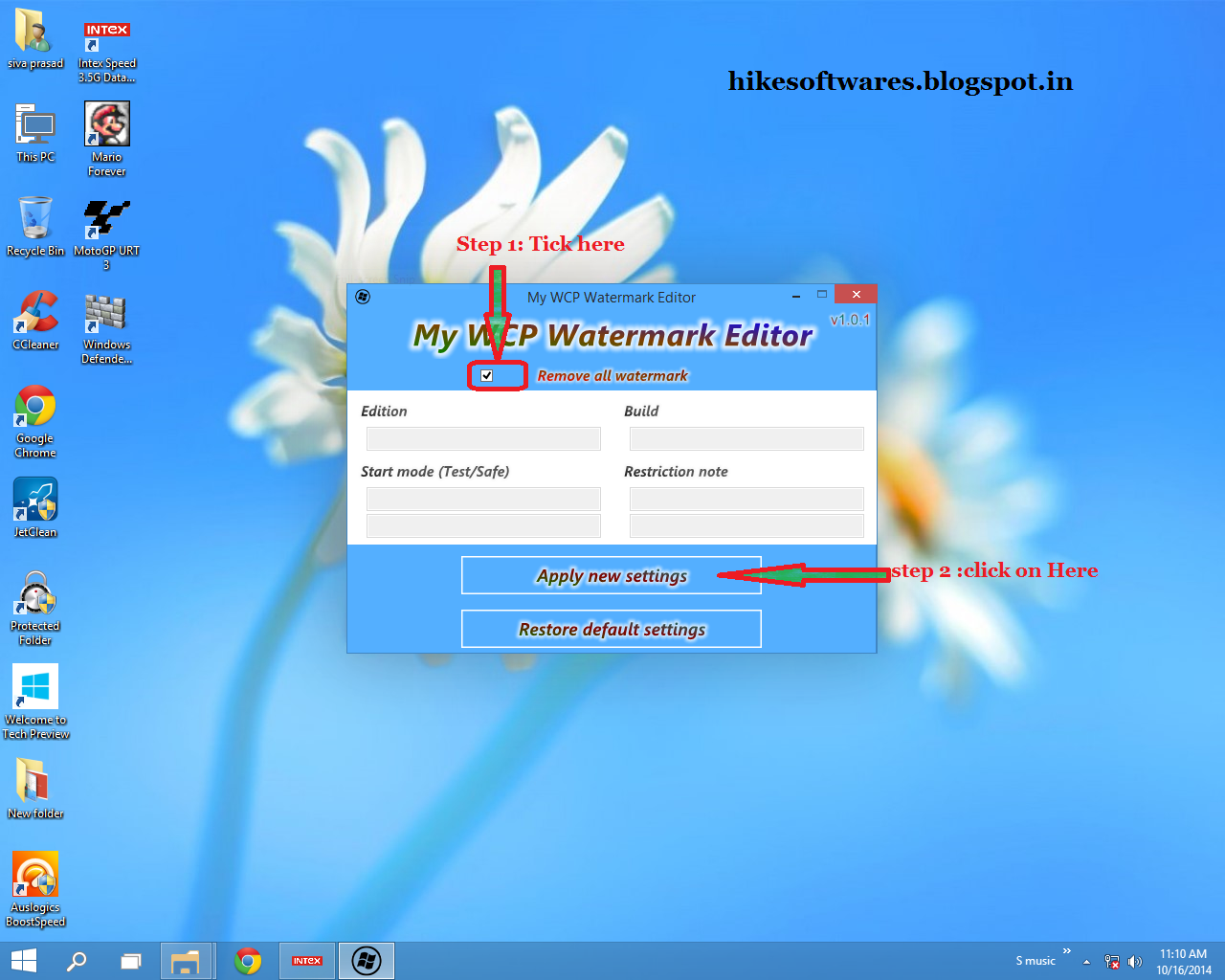
If watermarks are still appear Use this watermark removal tool to remove all type of watermarks from windows 10 :

1. Run Windows 10 Watermark Remover
2. Tick "Remove all watermarks" checkbox at the top
3. Click 'Apply New Settings'
4. Restart PC when it will ask
5. Your Watermark will disappear !

See the below Picture for reference


Restart your system....TADA! Your Windows 10 is fully activated now ...you can enjoy the activated features of windows 10 from now....

see below..I have activated Windows 10 successfully by following above instructions 


Any doubts, queries, solution for problems comment below:::


How To Install Windows 10 Technical Preview

Standard

How To Install Windows 8 , 8.1 , 10 Technical Preview : 

It is similar to install either windows 8,8.1 or 10 Technical Preview on your PC , So I am going to elucidate the installation of Windows 10  Technical Preview :

You Can Install windows 10 preview through two ways. 1. Through DVD drive and 2. Through Pen Drive
Let’s See the First method First :
First Download Windows 10 Preview ISO file from given below link either it is PRO or Enterprise.
Then Write the ISO file on DVD by using any ISO file burner software. If you don’t have any writer software then donwload one of the following Image burning software
1.Nero
2.Power ISO (preferred)
If you downloaded and installed Nero , Use burn image file to Disk option to Burn the Windows 10 Preview to DVD.
Or easy and effective image burning tool Power ISO tool. Directly double click on ISO file it’ll open the power ISO tool then select write image file to disk option.
As same as use other software to burn image of windows 10 ISO file to a DVD.
After burn process successful, insert the DVD into DVD drive and restart your PC, By pressing esc or F1 or F7 or Dlt you can go through your system BIOS. In BIOS search and change the First Boot priority to DVD drive..by using F10 key and Y,  you can save the BIOS settings. Then your system’ll restart and when press any key to boot from cd will appear on your screen press any key , now  windows 10 will load as like below image

The installation will begin with the blue flag image, just like Windows 8.x
After you choose your language and click Next, click the Install now button.

To get started, click the Install now button.
As you work through the wizard, choose the Custom: Install Windows only (advanced) and the 25 GB hard drive. Format it, The installation procedure will then begin. As Windows Setup progresses, you'll be prompted to restart your system. Becareful when you choose drive to install , Install the copy in only C. ( make sure you are installing windows 10 in only C )

The Above picture is combination of three stages first stage you need to select Custom : Install windows only ( Usually second option ) , The next step is choosing a drive partition for install windows make sure that the selection of drive partition must be , Local Disk C in your previous Operating system. remember the size of the drive , normally The System drive has low memory capacity i.e.,the drive looks like 25 GB or more than and lesser than other drive partitions.

At this stage, you'll speed things up by selecting Express settings.
Select Use Express Settings .
The colorful information screens play throughout the rest of the installation.
Soon, you'll be prompted to restart your system one more time, and then you'll see the Windows 10 interface with its new hybrid Start Menu/Start Screen

During the process the system shutdown sometimes . and every time it restarted it asks press any key to boot from CD and make sure that you must not press any key once the installation started. So you need to press any key on keyboard only one time. after that never press keys while the system getting restarted.
After the Above process completes your windows 10 desktop will appear 

that's it you successfully installed and learned the install of a operating system on your PC. 

Second Method : 
You can install a fresh copy of Windows Operating system through Pen drive also..
Installing windows 10 through pen drive is like as installing through DVD drive. If you want to install windows 10 through pen drive you need flash tools , so, download flash tools for windows now.
1.       Power ISO
2.       Unetbolt
3.       Microsoft  flash tool (recommended)
Download one of the tool above given
 By using power ISO you can create a bootable ISO file so, download and install POWER ISO ,Open Power ISO software, now go to tools and select Create bootable removal drive option then it’ll open another window where you need to select the ISO file and pendrive and then select ok. Wait until the process complete then restart your PC and go through BIOS by pressing asserting key of your motherboard manufacture…Usually Esc, F1 ,F2 or F7 and Del keys…Search for first boot device and select priority to Removal storage..save the settings now…after system restarted press any key to boot from drive….and then follow the process as same as installation through DVD drive… 

If you want to create bootable Removal drive through Microsoft's USB Flash tool , it is very easy to create. after installing USB Flash Tool , a window will appear it looks very easy to understand , simply select ISO file and then select Pen drive path wait for the process to be end and now you have a bootable Usb Drive..

Note: if you want to upgrade from windows xp to windows 10 , when you trying to install microsoft's USB flash tool you must install two components they are : 


After installation of these two components only you can able to install USB flash Tool.

Things to remind : 
  • make sure that you are going to install a fresh copy of Operating System on your PC in only Drive Partition C . usually the administrators give low memory size for it or before you install new OS note your Size of Local Disk C . It'll be easier to install the OS in the correct partition.
  • You need to press key on keyboard only one time in the first time  when it asks for press any key to boot from CD . Because during installation the system will shutdown several times. you must not press key second time . If you press a key on second time , The installation process starts again
Once the installation is complete , you can able to activate Windows 10 :

Tuesday, 14 October 2014

Windows 10 Activator

Standard

Download Windows 10 Activator :


               Waiting is over now...Microsoft's Brand new Operating System Windows 10 got many features than Windows 8.1, It got start menu with metro on start menu looking great, New Apps, Multi Desktop support, and so on... the people who are really have interest to use it and activate it unofficially , come and get this great and most trusted windows activator. And activate your Windows 10 

 If you didn't download windows 10 technical preview yet, download the Windows 10 ISO file from HERE

And then Download the Windows Activator : 

Download kms Activator for windows 10


If you want watermark removal tool for windows 10 , you can download the tool from HERE

Windows 10 Water Mark Removal Tool

Standard

Download Windows 10 Water Mark  Removal Tool  :

Microsoft has announced and released the preview of Windows 10 Operating System. It looks great , i have installed it. Windows 10 is faster than Windows 8.1 as i experienced and it is in evaluation stage so it got a annoying watermark at the right down corner, some body as like me guys don't love to see it , Are you like me? Ok then i am going to serve you the watermark removal for latest Windows 10 Preview, It removes that watermark
How to Remove Watermark By using it :
  1. Install a Fresh copy of Windows 10 Technical Preview of Any Edition
  2. Run Windows 10 Remover
  3. Tick " REmove all watermarks " check box at the top
  4. Click on 'Apply New Settings'
  5. Restart PC.
  6. That's it now the watermark will get disappear

Download Windows 10 technical preview WATERMARK Removal Tool


Thursday, 9 October 2014

Windows 10 technical preview direct links

Standard

Download Latest Windows 10 operating system Technical preview all versions direct links :


ISO SETUP
FILE


32 BIT


64BIT


Windows 10
PRO


DOWNLOAD


DOWNLOAD


WINDOWS 10 ENTERPRISES


DOWNLOAD


DOWNLOAD


Product Key :
PRO : NKJFK-GPHP7-G8C3J-P6JXR-HQRJR
ENTERPRISES : PBHCJ-Q2NYD-2PX34-T2TD6-233PK
Comment below if you getting any problem : 

Download Watermark Removal Tool for Windows 10

About Us